
Introduction
OLAP cubes in Multidimensional model provided by the SQL Server Analysis Service (SSAS) generally connect to a SQL Server database as a Data Source. However, as your data grows, query latency takes a hit, slowing down the build, deployment and operation of the cubes in SSAS. In order to improve the performance of queries to the sourcing database, you can migrate your data from a SQL Server to Azure SQL Data Warehouse, which is a cloud based, linearly scalable database built on Massively Parallel Processing (MPP) architecture.
This article provides you detailed information on how to perform this migration. It starts with uploading the AdventureWorks2012 tutorial database to a SQL Server and a cube created from the Multidimensional Modeling Tutorial. You do not need to go through that detailed tutorial to create the cubes. Instead this article provides links to simply restore the SQL and SSAS Databases from backups.
Setup
Prerequisite
- A SQL Server with SSAS 2016 running in a Windows VM
- (SSMT) SQL Server 2016 Management Studio (used v 13.0 in the example here)
- Visual Studio with SQL Server Data Tool (used Enterprise 2015 version 14.0)
- Azure Subscription to create an Azure SQL Data Warehouse instance and Azure Data Factory
- MS Excel
Create the SSAS cubes sourced from a SQL Server.
Start SQL Server Management Studio, i.e. SSMT, and connect to the SQL Server 2016 Database Engine
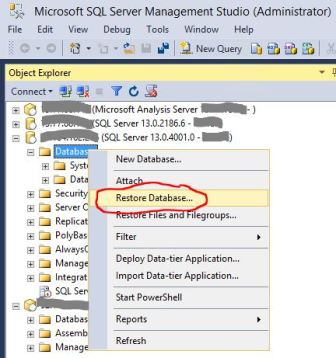
- Right click on Databases on the left panel
- Select Restore Database and follow steps to restore from the AdventureWorksDW2012.bak file
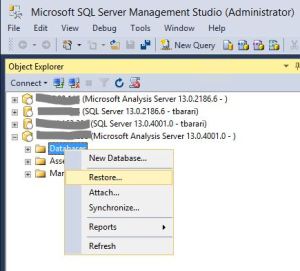
Connect to the SQL Server Analysis Server
- Right click on Databases on the left panel
- Select Restore and follow steps to restore from the Analysis Services Tutorial.abf file
Unzip Analysis Services Tutorial.zip, in a folder in your local file system and open Analysis Services Tutorial.sln from Visual Studio to build and redeploy the Multidimensional model to test the development environment.
- In Visual Studio, open Solution Explorer and expand the Solution.
- Double click on Adventure Works DW 2012.ds under Data Sources
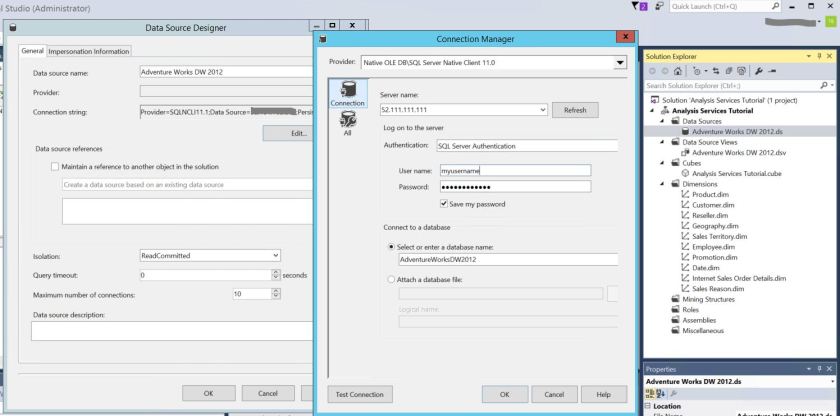
- In Data Source Designer dialog box, click on the Edit button
- In Connection Manager pop-up, change the Server name field to the server address of your SQL Server Database, change the user name and password
- Click on Test Connection to check connectivity to your Database.
- Hit OK to return back
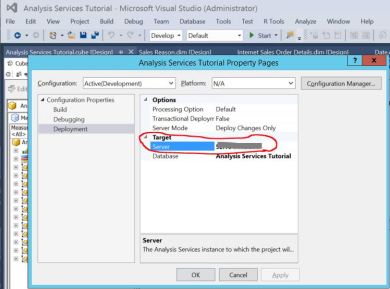
- Click Project -> Analysis Service Tutorial Properties and in pop-up window, click on Deployment in left panel
- Under Target sub section, edit Server and enter IP address of your SSAS Server
- Build and Deploy the model to the new Analysis Server to test
View the Cube in Excel
Once the build and deployment is complete, you can view the Cube in Excel.
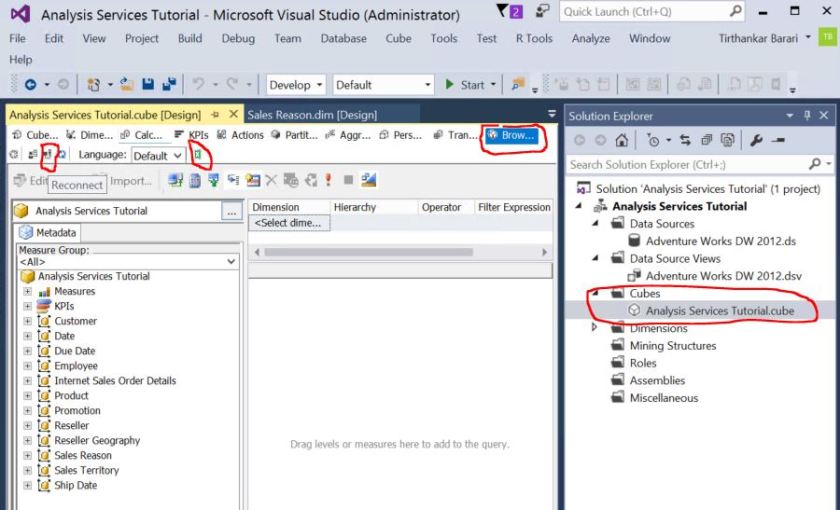
- In Visual Studio, in Solution Explorer under Cubes, double click on the Cube, Analysis Services Tutorial.cube
- On the canvas to the left of Solution Explorer, click on Browser from the tabs.
- Click on the Reconnect icon underneath.
- Once reconnection completes, click on the Excel icon next to it.
When Excel opens
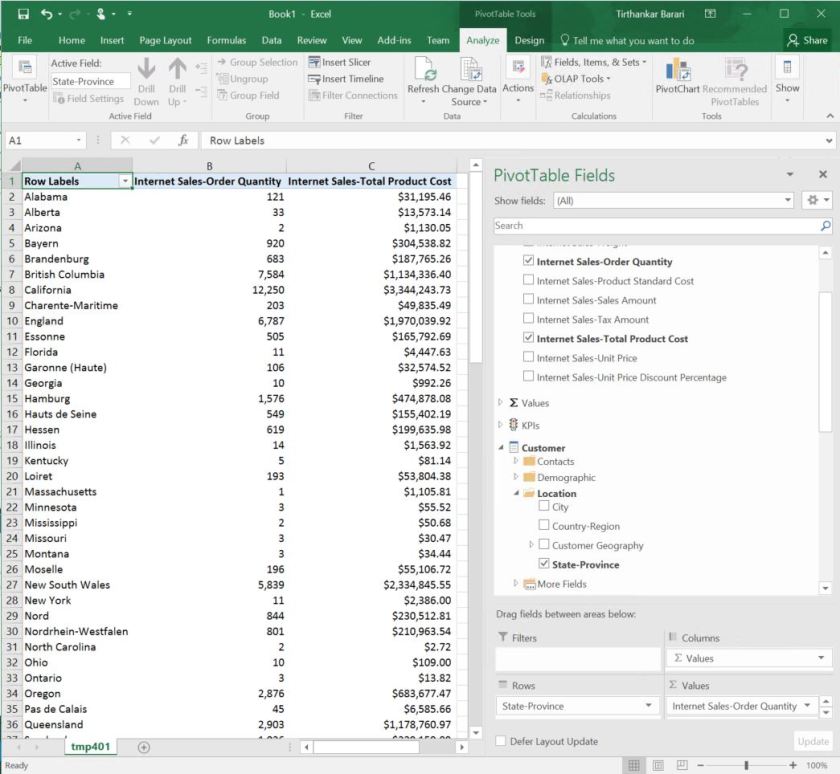
- Chose the Internet Sales perspective and hit OK
- In PivotTable Fields, under Internet Sales, check Internet Sales-Order Quantity and Internet Sales-Total Product Cost
- In PivotTable Fields, under Customer, Location check State-Province
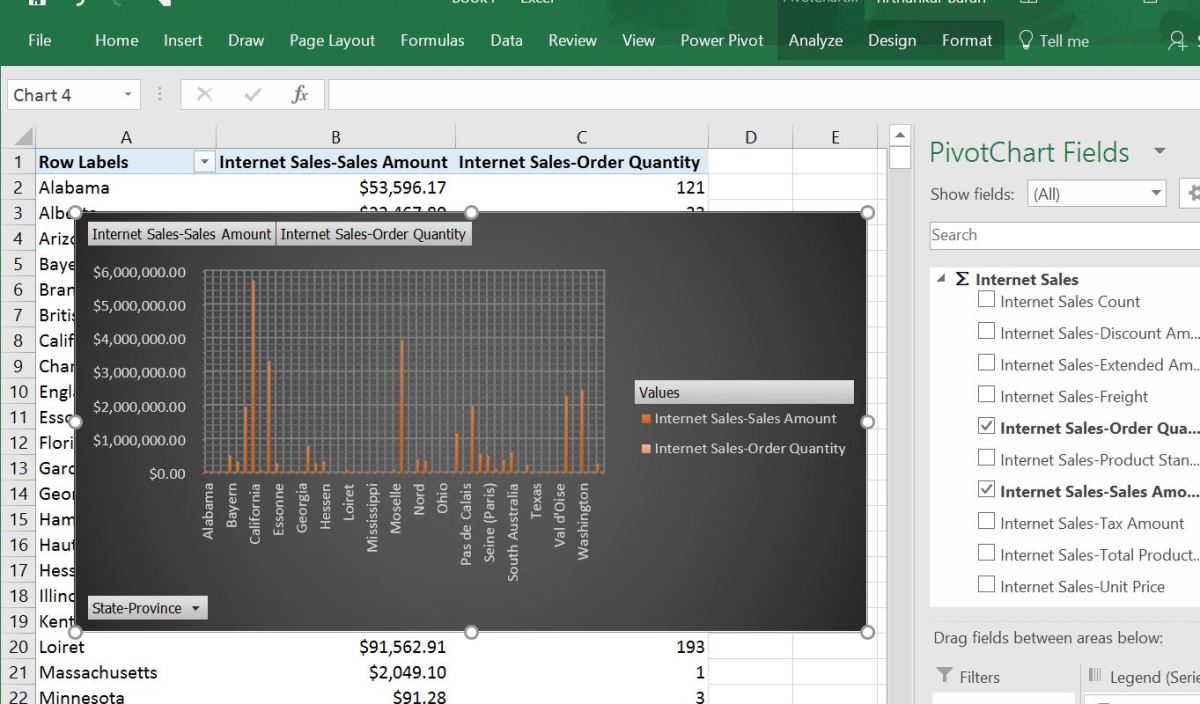
- Now you will see the values on the left side as shown in the figure below.
Create Azure SQL Data Warehouse instance
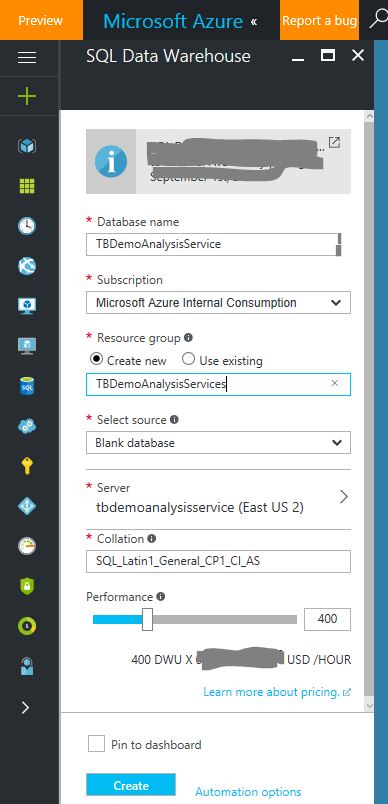
Use Azure Portal to create the Azure SQL Data Warehouse instance, named TBDemoAnalysisService. In this example, the server name is tbdemoanalysisservice.database.windows.net and the name of the Azure SQL Data Warehouse is TBDemoAnalysisService. Also, remember the username and password you entered when creating the server. You will need these when reconfiguring SSAS to point to this Data Source.
Migration from SQL Server to Azure SQL Data Warehouse
Create Schema in Azure SQL Data Warehouse using Data Warehouse Migration Utility
Use Data Warehouse Migration Utility to generate database schema from the above SQL Server 2016, AdventureWorksDW2012 instance for the Azure Sql Data Warehouse, TBDemoAnalysisService.
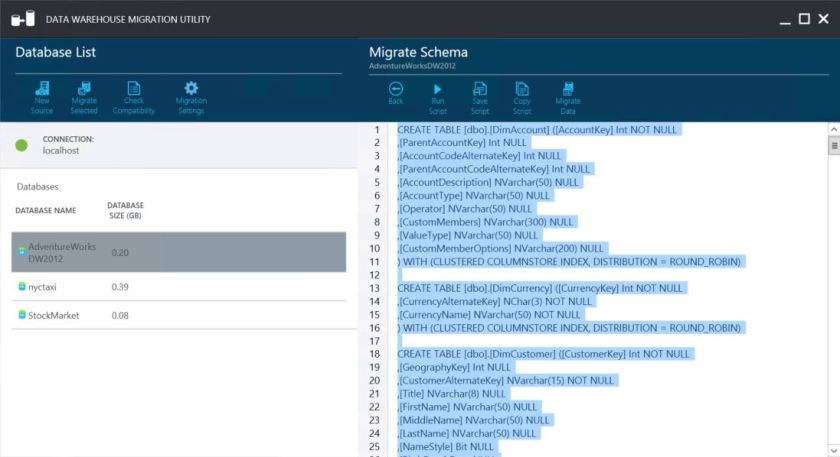
Save the migration schema generated by the Utility as shown in Fig 8. in a .sql file and execute it against the Azure SQL Data Warehouse instance, TBDemoAnalysisService, using SSMT.
Note: Data Warehouse Migration Utility will ONLY migrate the tables and NOT any View, User Defined Function etc. You have to manually migrate those.
Alternative Approach to migrating the database schema
Alternatively, you can use the script from here to create the tables, views and user defined functions in TBDemoAnalysisService in Azure Sql Data Warehouse, using SSMT.
Copy the Data from SQL Server 2016 to Azure SQL Data Warehouse using Azure Data Factory
Use Copy data tool in Azure Data Factory to copy the data from AdventureWorksDW2012 running in your SQL Server, to Azure Sql Data Warehouse running TBDemoAnalysisService instance. Make sure, you do NOT copy the views over.
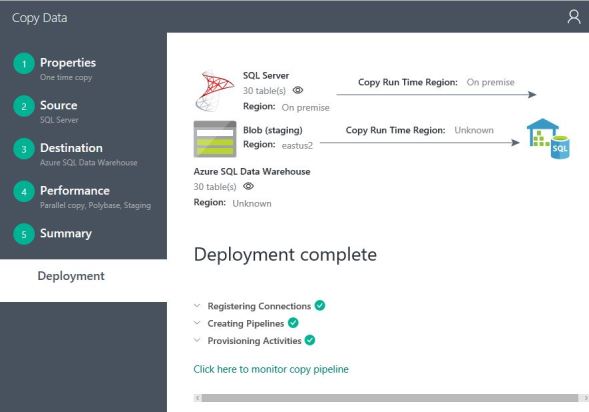
Note: There are other ways to migrate the data, using Data Disks, manually created Polybase scripts etc. If your data is more than several Terabytes or network connectivity is a concern, then you may have to explore those alternatives. However, majority of the cases, Azure Data Factory is the best option.
Change Analysis Service Data Source from Sql Server to Azure Sql Data Warehouse
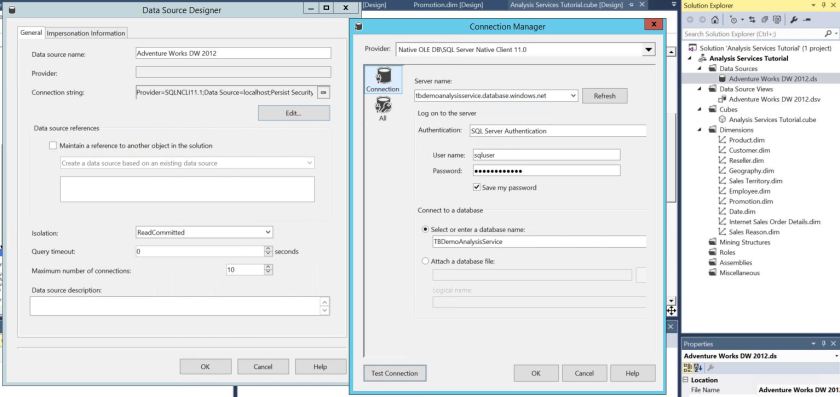
- In Visual Studio Window, where you had opened the Analysis Service project, double click on the Data Source, Adventure Works DW 2012.ds, in Solution Explorer panel on the right side.
- Hit Edit in the Connection string field
- In Connection Manager pop-up, change the Server name field to the Azure SQL Data Warehouse server address of the instance you created above, change the user name and password and the database name to TBDemoAnalysisService
- Click on Test Connection to check connectivity to your Database.
- Hit OK to return back
- Build and Deploy the model to the above existing Analysis Server
View the Cube in Excel
Once the build and deployment is complete, go back to the Excel Viewing Section above and open the Excel Spreadsheet and verify that you see the same data. The difference this time is that, the sourcing database is from Azure SQL Data Warehouse INSTEAD of Sql Server 2016.
 Work that works at work